Usage
Usage
Direct Mode
Sends Webhooks directly from the machine running poi. No additional setup required.
Setup
- Open the plugin in poi settings
- Select “Direct” under Delivery Mode
- Choose Webhook type (Discord / Slack)
- Enter the Webhook URL
- Click “Send Test” to verify
- Click “Save”
How to Get a Webhook URL
Discord
- Open the settings for the channel you want to notify
- Integrations → Webhooks → New Webhook
- Copy the Webhook URL (format:
https://discord.com/api/webhooks/...)
Slack
- Create a Slack App and enable Incoming Webhooks
- Select a channel and copy the Webhook URL (format:
https://hooks.slack.com/services/...)
Cloud Mode
Notifications are sent from the cloud. Delivered even when poi is closed.
Login
- Select “Cloud” under Delivery Mode
- Click the “Login” button
- Create an account or sign in with email (Google login is also available)
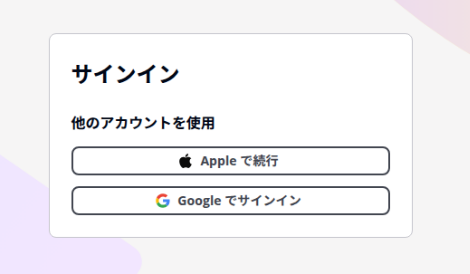
Webhook Configuration
After logging in, set the Webhook type and URL and save. Settings are stored in the cloud.
Logout
Click the “Logout” button to sign out. Scheduled notifications are cancelled on the server when you log out.
Mobile App
A dedicated app for iOS and Android. Works with Cloud mode to send push notifications directly to your smartphone — no Discord or Slack Webhook setup required.
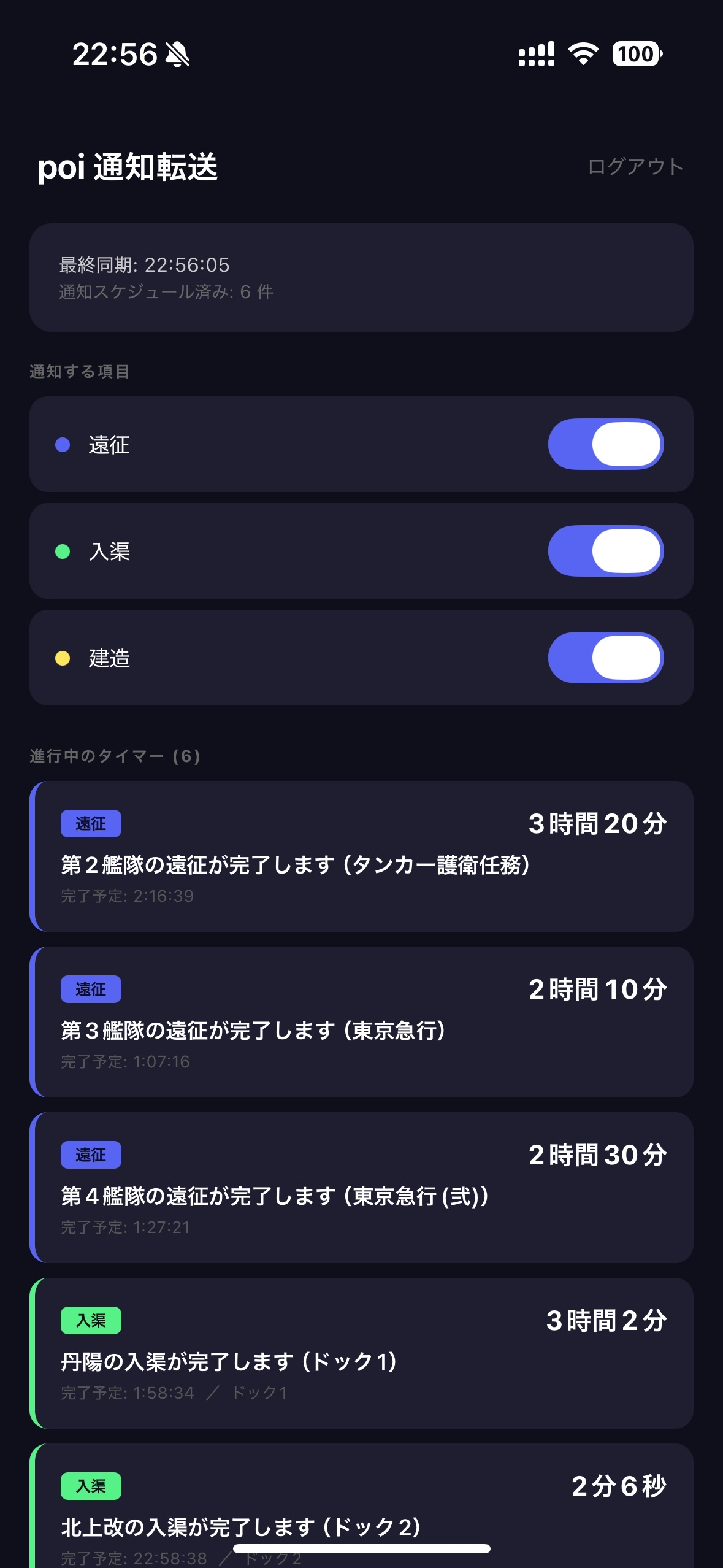
Initial Setup
- Install the app from App Store (iOS) or Google Play (Android)
- Sign in with the same account as your poi plugin (Email / Google / Apple)
- Allow notifications when prompted
How It Works
- When the poi plugin syncs timers to the cloud, the server sends a silent push notification to the app
- The app receives the timers in the background and schedules local notifications at completion time
- Notifications are delivered even when the app is closed
Notification Settings
In the app settings, you can toggle notifications for each event type (Expedition / Repair / Construction) individually.
Home Screen Widget (iOS)
Add a timer widget to your home screen to check remaining time without opening the app.
- Long-press the home screen → tap the “+” button in the top left
- Search for “poi通知転送”
- Choose Small (1 timer) or Medium (up to 3 timers) and add
Notification Colors
| Type | Event | Discord | Slack |
|---|---|---|---|
expedition |
Expedition complete | Purple #5865F2 |
Purple #5865F2 |
repair |
Repair complete | Green #57F287 |
Green #57F287 |
construction |
Construction complete | Yellow #FEE75C |
Yellow #FEE75C |
default |
Other | Gray #AAAAAA |
Gray #AAAAAA |
Test Notification
Use the “Send Test” button in settings to verify your Webhook connection without waiting for an actual game event.